What this guide is really about
Threads lets you save an unfinished post as a draft and come back to it later, right inside the composer. On the phone you swipe down or tap the draft icon in the top right. On threads.com you close the post and click Save. Either way, the draft waits in a drafts tray that is easy to miss, because Threads does not show a drafts button on the main feed.
This guide covers the whole loop: saving a draft, finding saved drafts again, reopening and editing them, deleting them, the sync rule that makes drafts look like they vanished, and what to do when app drafts are not enough for a real publishing workflow.
Yes, you can save drafts on Threads. In the app, start a post, then swipe down or tap the draft icon at the top right of the composer. On threads.com, click Close in the composer and choose Save. Reopen any draft from the same draft icon. Drafts do not sync: a draft saved in the app stays in the app, and a draft saved on the web stays on the web.
Save a draft on mobile and on the Threads website without losing text
Find the drafts tray that Threads hides behind the composer
Understand the sync rule so drafts stop seeming to disappear
Know when app drafts are enough and when you need a queue
Threads drafts are saved from the composer: swipe down or tap the draft icon on mobile, click Close then Save on the web.
The drafts tray lives behind the same draft icon in the composer, not on your profile or the main feed.
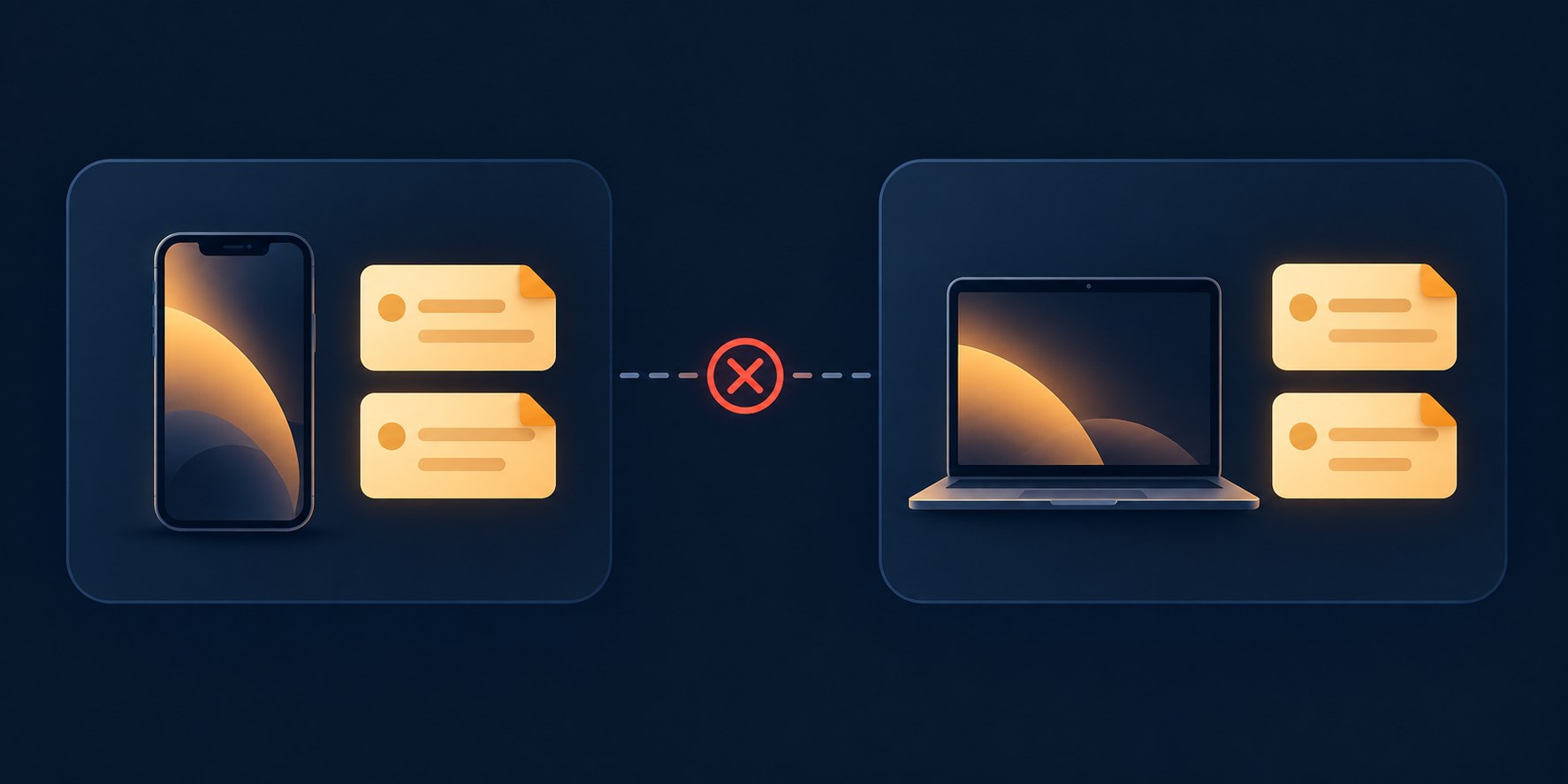
Drafts are surface-locked: app drafts stay in the app, web drafts stay on threads.com.
Delete a draft from the drafts tray with the three-dot menu, then Delete draft. A draft does not post itself.
App drafts stay in the app and web drafts stay on threads.com. A queue is the workaround when a post has to move between those surfaces or go out on a schedule.
Save a Draft in the Threads App (Step by Step)
Open the Threads app and tap the compose icon in the bottom right to start a new post. Type or paste what you have so far. Attachments you add, like images, sit in the draft alongside the text. If you care about the structure that gets read, set line breaks and bold text in the composer before you save. You do not need a finished post; a sentence is enough.
When you are ready to step away, you have two ways out. The first is to swipe down on the composer. Threads hides the post window and saves your text as a draft you can reopen later. The second is to tap the draft icon at the top right of the composer, which saves the draft directly and shows you everything waiting in the drafts tray. Both paths keep your words, so pick whichever your thumb finds first.
Want it gone? Open the drafts tray, tap the three-dot menu, and tap Delete draft. That is the removal path on the help page. The swipe and the draft icon save. They are not a documented discard button. An old draft you never finish is just clutter in the tray.
Save a Draft on threads.com (Web)
On the Threads website, click the compose icon to open a new post and enter your text. The web composer supports the same basic draft behavior, so anything you type can be parked for later.
To save, click Close in the composer, then click Save. The draft is stored on threads.com, not in the app. Reopen it by clicking the compose icon again and then the drafts icon, exactly as the official help page for saving a post draft describes.
The web flow matters if you write at a keyboard. A draft saved on threads.com is there the next time you open threads.com. If that tray is empty, check the app. App drafts do not appear on the web.

Find, Reopen, and Delete Saved Drafts
Drafts hide in plain sight. To see them, start a new post as if you were about to write, then tap the draft icon at the top right of the composer. The drafts tray opens and lists every unfinished post. This is the same icon that saves drafts, which is why people walk past it: nothing on the main feed says a drafts tray exists.
To reopen a draft, tap it in the tray. The composer opens with that draft loaded. Edit it, then save again from the composer, or post it when it is ready. The help page does not say a second save replaces the old draft, so check the tray if you need only one copy.
To delete a draft, open the drafts tray, tap the three-dot menu next to the draft, and tap Delete draft. That is the whole removal flow. If your tray fills with ideas you will never finish, this quick delete keeps the list honest, and it pairs well with a weekly habit of drafting in batches instead of one desperate post at a time.
Looking for a drafts button on the main feed or profile instead of inside the composer
Assuming drafts sync across app and web, then concluding the draft was deleted
Leaving a finished post in the tray and expecting it to publish later
Saving every stray thought and never scheduling a cleanup pass, until the tray is unusable
Looking for a discard button on the save gesture instead of Delete draft in the drafts tray
The Sync Catch: Drafts Stay Where You Saved Them
Here is the rule that explains every vanished-draft story: drafts that you save can only be accessed from where they were saved. A draft saved on threads.com opens only on threads.com. A draft saved in the app opens only in the app on that device. Meta documents this limit directly on its drafts help page.
Meta's rule is about surfaces, and the help page does not spell out whether an app draft follows your account to another phone. Check the app where you saved it before you conclude anything is gone. But because the app and the web each keep their own tray, the tray you are looking at will not show drafts from the other side. That feels like data loss when it is really a storage boundary.
The fix is a habit, not a setting. If you started a draft on your phone and want it on the desktop, copy the text out before you close the composer, or finish the post on the device where it lives. For anything longer than a throwaway line, keep one primary drafting surface so all drafts pool in one tray.
There is no account-wide sync toggle to enable and no setting that fixes this today. Treat the boundary as permanent until Meta says otherwise, and route around it with copy-paste or a queue.
Draft Limits and What Actually Gets Saved
Threads does not publish an official cap in its help documentation. Third-party coverage of the drafts feature has reported a limit around 100 saved drafts; treat that as a reported figure, not an official number, because Meta's own page does not state one. In practice you will hit your own attention limit long before any platform cap.
What is safe to rely on: text you have typed, and attachments you have staged in the composer, stay with the draft between sessions on the same surface. The same 500-character limit that applies to published posts applies in the composer, so a draft can hold anything a real post can.
What drafts do not do is schedule. A draft never posts itself. If you want a post to go out at 9 a.m. while you are doing something else, a drafts tray is the wrong tool, and the next section covers the queue that handles that job.
When App Drafts Are Not Enough: A Cross-Device Queue
Native drafts work well for one person on one device. The model breaks along the seam the sync rule exposes: you cannot see app drafts on the web, you cannot see web drafts in the app, and nothing in the tray will ever publish on its own. The moment your workflow spans a phone and a laptop, or you want posts to go live at set times, you need a queue instead of a tray.
That is the gap a scheduler fills. The JoltSage Threads scheduler keeps scheduled, unscheduled, and posted work visible in one queue, supports batch drafting so you can prepare a week of posts in one sitting, and publishes through the official Meta Threads API with approval-first control, so nothing goes live unreviewed. If drafts keep slipping because the right words are on the wrong device, that is the moment to move from tray to queue.
A simple test decides it. If you can finish and publish every post on the surface where you started it, native drafts are enough. If you keep drafting in the app and publishing on threads.com, or you need a post to go out at a set time, move that work to the queue.
A Draft Workflow That Finishes Posts
Saving a draft is the easy half. Finishing is the hard half, and a tray full of abandoned drafts helps no one. A small loop keeps the tray working for you instead of against you.
Capture fast, finish on a schedule. When an idea hits, save it as a draft within seconds, uncensored and unpolished, using the draft icon on mobile or Close and Save on the web. Then set one recurring slot per week to open the tray, keep the drafts worth finishing, and delete the rest with the three-dot menu. What survives gets finished and posted; nothing carries over unfinished for more than two weeks.
Action checklist
Use this as the practical next pass after reading the guide.
- +Start a post, type one line, and save it as a draft on the device you use most
- +Open the drafts tray from the composer once so you know where it lives
- +Delete or finish every draft older than two weeks
- +Pick one primary drafting surface so drafts stop splitting across app and web
- +Decide between tray and queue with the cross-surface test
- +If you use a queue, connect it through the official API and keep approval on

Conclusion
Threads drafts are simple once you know the two doors: swipe down or tap the draft icon in the app, click Close then Save on the web, and reopen everything from that same draft icon inside the composer. The one rule to remember is that drafts do not cross surfaces, so the tray you see is only ever the tray for where you are.
Save fast, reopen often, delete ruthlessly, and move to a queue the day your drafts need to travel or publish on a schedule. The feature is free and waiting inside the composer; the workflow around it is what turns drafts into posts.