
What this guide is really about
Reposting is the fastest way to share someone else's post on Threads: one tap on the reshare icon and the post shows up on your profile and in your followers' feeds. But the same menu holds a second option, quote, and the two behave differently once you press them.
This guide covers the whole set: how to repost in the app and on the web, how quoting works, how to undo a repost you regret, what you can honestly do about reposts flooding your feed, and how to send a Threads post over to Instagram. Where Meta doesn't document a setting or behavior, don't assume a guide's workaround is a built-in feature.
If you manage a posting schedule around reshared and original content, the last section gives you a weekly workflow that keeps your profile mostly your own voice.
Tap the two-arrow reshare icon below a post and choose Repost. It appears on your profile and in your followers' feeds. Choose Quote instead to wrap the original in your own text as a new post on your account. To undo, tap the highlighted repost icon and confirm Remove repost. No documented setting hides all reposts from your feed; the Following feed shows only accounts you follow.
The reshare icon below any post opens two actions: Repost (silent amplify) and Quote (your text above the original).
A repost lands on your profile and in feeds exactly as the author wrote it; a quote is a new post of your own that embeds the original.
Undo a repost by tapping the same icon, which shows as active, then confirming Remove repost. The original post is untouched.
Meta documents no global hide-all-reposts switch. The Following feed and For You personalization requests are the levers that exist.
Authors can limit who quotes a post through per-post Reply options, so a missing quote button usually means the author restricted it.
How to Repost on Threads in the App and on the Web
Open any thread or reply and look below it. Next to the like and share buttons sits the reshare icon, two arrows chasing each other in a loop. Tap it once and a small menu offers two choices: Repost and Quote. The official help article Like, repost or quote a thread or reply on Threads describes both actions, and it states plainly what a repost does: the post will appear as a reposted thread on your profile and in feed.
Reposting adds nothing of yours. The original post's text and media remain the author's; reposting doesn't turn them into a new post you wrote. The same icon sits below posts when you use threads.com from a computer, so the flow is identical on desktop: click the reshare icon, pick Repost, done.
Your profile keeps a Reposts column, separate from your own posts and replies. People who can view your profile may also be able to see its Reposts column, so consider what you amplify before you reshare something off-brand in a hurry.
Quote Posts: Reposting With Your Own Words
Choose Quote from the same reshare menu and the composer opens with the original post embedded below an empty text field. Your commentary sits on top, and when you post it, the whole package becomes a new thread on your account. The help page describes it this way: when you quote a thread, it will be included in a thread you post.
The practical difference is where the conversation happens. People can reply to, like, or reshare your quote as its own post, while the original remains available to engage with too. That makes quoting the right call whenever you have an actual take, a disagreement, or extra context. A bare repost is the right call when the original already says exactly what you would say.
Authors control this. The page Manage who can reply and quote your post on Threads explains that any post of yours has a Reply options menu where you pick who can reply and quote it. The setting applies per post, not account-wide, and changing it never deletes replies or quotes that already exist. Limiting quotes also limits who can reuse media included in the post. If you can't quote a post, check whether its author has limited who can quote it; the missing option alone doesn't establish the cause. One documented edge: these controls exist for posts that are not shared to the fediverse, so fediverse-shared posts work differently.
Longer takes benefit from drafting. Threads lets you save a post as a draft and keep several at once, but the help center notes that drafts only open on the surface where you saved them: an app draft stays in the app, a threads.com draft stays on the web. Start your quote in the place you plan to post it from.
How to Undo or Remove a Repost
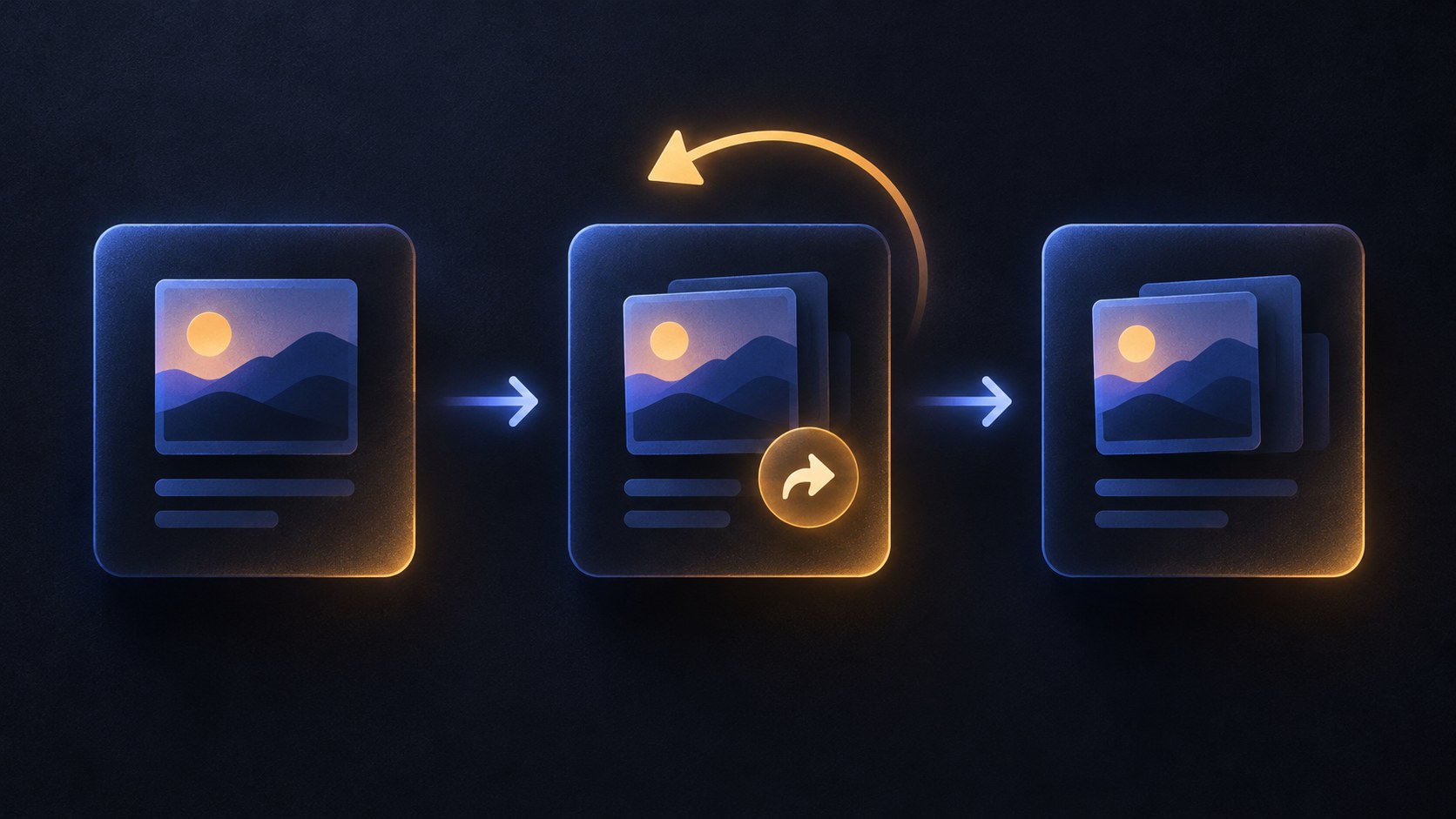
To remove a repost, return to the post you reposted, or find it in the Reposts column of your profile, and tap the reshare icon again. It shows as active, usually with a checkmark, and tapping it offers Remove repost. Confirm, and the repost disappears from your profile and feeds. Independent step-by-step guides with screenshots, like the WebTrickz walkthrough of removing a repost on Threads, show the same path in the app.
Removing your repost never touches the original. The author's post stays live with its replies and metrics, and only your amplification goes away. The reverse situation is different: if you delete your own original post, Meta documents that it will no longer be visible on Threads, while replies other people wrote to it remain. Deletion also behaves differently outside Threads when you share to the fediverse, where Meta requests removal from other servers but cannot guarantee it.
One more mechanic from the documentation: if people interact with your post before you finish editing it, including reposting or quoting it, the edited post carries an Edited label. Edits only cover text, only within 15 minutes of posting, and attachments cannot be added or removed. If someone reposts or quotes before you finish editing, Meta says the edited post shows an Edited label. Its help page doesn't say that the repost preserves the earlier text.
Reposting when you actually disagree or have context to add. The quote option exists for that, and it puts the resulting conversation on your post instead of burying your take where nobody sees it.
Treating your Reposts column as private. It is public profile content, and visitors judge your profile by everything in it, including what you amplify.
Deleting your own original post when you only meant to remove your repost. Remove the repost instead; deleting an original makes that post no longer visible on Threads, but other people's replies are not deleted.
Expecting a hide-all-reposts toggle that the documentation does not offer, and trusting guides that promise one. The Following feed is the reliable lever that exists.
Drafting a quote post in the app and expecting to finish it on threads.com. Drafts only open on the surface where you saved them.
Can You Hide Reposts From Your Threads Feed?
Here is the honest answer: Meta's help center documents no setting that hides all reposts from your feed, on any surface, as of today. Guides claiming a universal repost toggle are describing something the documentation does not confirm. What actually exists is simpler and still useful.
Threads' For You and Following feeds offer two different ways to browse, and the help page About your feeds on Threads spells out the difference: For You mixes posts from profiles you follow with recommended accounts, while Following shows posts only from profiles you follow. If your For You feed feels like a wall of reshares from accounts you never chose, switching to Following removes recommended accounts, but it isn't a hide-reposts filter for accounts you follow.
For the algorithmic side, Meta documents a personalization mechanism: where available, you can make public Dear algo requests or private Your algo requests, with up to five active requests of each type, to nudge what your For You feed emphasizes. Meta does not document a repost filter inside that system, so treat it as an experiment rather than a fix. And if the goal is your own profile looking cleaner, remember the real lever is removing reposts you regret, which takes two taps as covered above.
Sharing a Threads Post to Instagram
People searching for reposting to Instagram usually mean one of two things, and Threads supports both differently. Inside Threads, the Share button below a post is the route out: Meta's Share posts you see on Threads page explicitly lists copying a link or embed code. In the app, check the Share sheet for the Instagram story option; available destinations can differ by surface.
For Instagram specifically, the same help page carries the mobile flow in its questions on sharing Threads to Instagram and adding a post to your story. On the phone app, the share sheet includes the option to post the Threads content to your Instagram story. A true repost, the kind that lives on your Threads profile, stays inside Threads; the Instagram path is a story share or a link, not a native Instagram repost.
Keep attribution in mind. A story share renders the post for your audience, but a story is not a link itself. If your goal is to send someone to the original post, copy its link from the Share menu and send that directly.
Repost, Quote, or Reply: A One-Line Rule
Three verbs, three jobs. Repost when the original already says what you would say and your job is pure amplification. Quote when you have something to add, because the quote is your post, the replies land with you, and your profile gets the credit and the clutter. Reply when the person you want to talk to is the author, since a reply keeps the conversation inside their thread where they will actually see it.
A useful test before quoting: if your addition is shorter than a strong sentence, it probably belongs in a reply. If it stands alone as a thought your followers would value without seeing the original, it deserves a quote. When you do quote, the first line does the work of earning the tap, the same way it does for any original post, so the hook principles in how to write Threads hooks that earn opens apply to quote posts word for word.
Etiquette worth keeping: quote to build on, not to dunk. Threads shows your commentary directly above the original, and your audience will read both. Disagreement framed as extension tends to start better conversations than disagreement framed as exposure.
A Deliberate Weekly Reshare Workflow
Resharing works best as a small, scheduled share of your publishing mix rather than a reflex. Pick one evergreen post per week worth resurfacing, quote it with a fresh angle or an update instead of silently reposting it, and let the quote carry the new framing. Your own posts stay the majority of your profile that way, which matters because your profile is your portfolio: the Reposts column is visible, and a profile dominated by other people's posts may make it harder for visitors to see what you create yourself.
Decide what to resurface from evidence, not vibes. Threads insights show which posts earned replies and reach, and the review routine in Threads Analytics: Metrics That Help You Improve Posts turns that into a weekly signal. Posts that already worked once are your reshare candidates; for the rest, review what the post says and whether a new angle would genuinely help before sharing it again. The broader library thinking in how to repurpose content applies here too: a reshare is the lightest form of repurposing, and a quote with a new angle is the version that adds something.
Then keep the original pipeline flowing so reshares stay a garnish. Batch a week of original posts and put them in a queue with the JoltSage scheduler for Threads, spacing your reshares between them, and the mix maintains itself. If you want the full cadence design, how to build a social media posting schedule you will actually follow covers the weekly structure this workflow drops into.
Action checklist
Use this as the practical next pass after reading the guide.
- +Repost: tap the reshare icon below the post and choose Repost.
- +Quote: same icon, choose Quote, write your take above the embedded original, then post.
- +Undo: tap the active reshare icon and confirm Remove repost.
- +Cut feed noise: switch to the Following feed, and try one Dear algo request before assuming it works.
- +Resurface one evergreen post per week as a quote with a fresh angle.
- +Queue originals with a scheduler so reshares stay the minority of your profile.

Conclusion
Reposting takes one tap of the reshare menu, quoting creates a new post with your words, and removing a repost leaves the original untouched. The parts most guides get wrong are the edges: quote controls belong to the author, no global repost-hiding switch is documented, and drafts do not travel between app and web.
Used deliberately, the reshare menu is a distribution tool: repost to amplify others, quote to add your voice, and keep the whole thing a minority share of a profile that mostly carries your own work.