What this guide is really about
Threads lets you run more than one profile from the same app. Press and hold your profile picture, tap Add profile, and sign in with the account that should own the new profile. Switching on mobile uses that same long-press. On threads.com from a computer, you log out and log back in.
You get one Threads profile for each Instagram account you own, and one for each Facebook account you own. Signup can also start with an email address and a mobile number. The steps below cover the mobile app and threads.com, then how to run two profiles without posting from the wrong one.
Press and hold your profile picture, then tap Add profile. Sign in with another Instagram or Facebook account, or sign up with an email address and mobile number. Long-press that picture to switch profiles in the app. On threads.com, open the left Menu, click Log out, and enter the other account's username and password. You get one Threads profile per Instagram account and one per Facebook account.
Add a second Threads profile in under two minutes using the current in-app flow
Switch profiles without logging out on mobile, and know the web workaround
Know which badge carries over, and which edits stay on Instagram or Facebook
Run two profiles side by side without posting from the wrong one
One Threads profile per Instagram account and one per Facebook account. Add the second profile from the long-press sheet, not from settings. Signup can be Instagram, Facebook, or an email address and mobile number.
The mobile switcher is a long-press on your profile picture; the web app currently requires logging out and back in.
Followers and following on Threads do not change who follows you, or who you follow, on Instagram or Facebook.
A verified badge carries over from Instagram, but a Facebook verification badge does not carry over to Threads.
Personal information, such as your name, is edited on the Instagram or Facebook account, not on Threads. If that Instagram account is verified, the profile picture can only be changed on Instagram.
One profile per Instagram or Facebook account
You can create one Threads profile for each Instagram account you have, and one for each Facebook account you have. To create a profile on Threads, sign in with an Instagram account, a Facebook account, or an email address and mobile number. A second profile is not created from inside the current profile's settings. It starts when you add a profile and complete that signup.
If the new profile should sit on an Instagram or Facebook identity, pick that account before you start. An account that already has a Threads profile cannot hold a second one. Email and mobile number is the route when you are not signing in with an existing account. Do not expect the new profile to copy followers from Instagram or Facebook.
If the Instagram account is verified, that badge shows on the Threads profile, and you can only change the profile picture on Instagram. A Facebook verification badge does not carry over to Threads. Profiles you follow on Threads, and profiles that follow you there, do not change your Instagram or Facebook follows. Personal information is edited on the Instagram or Facebook account, not on Threads.
How to add a second profile in the Threads app
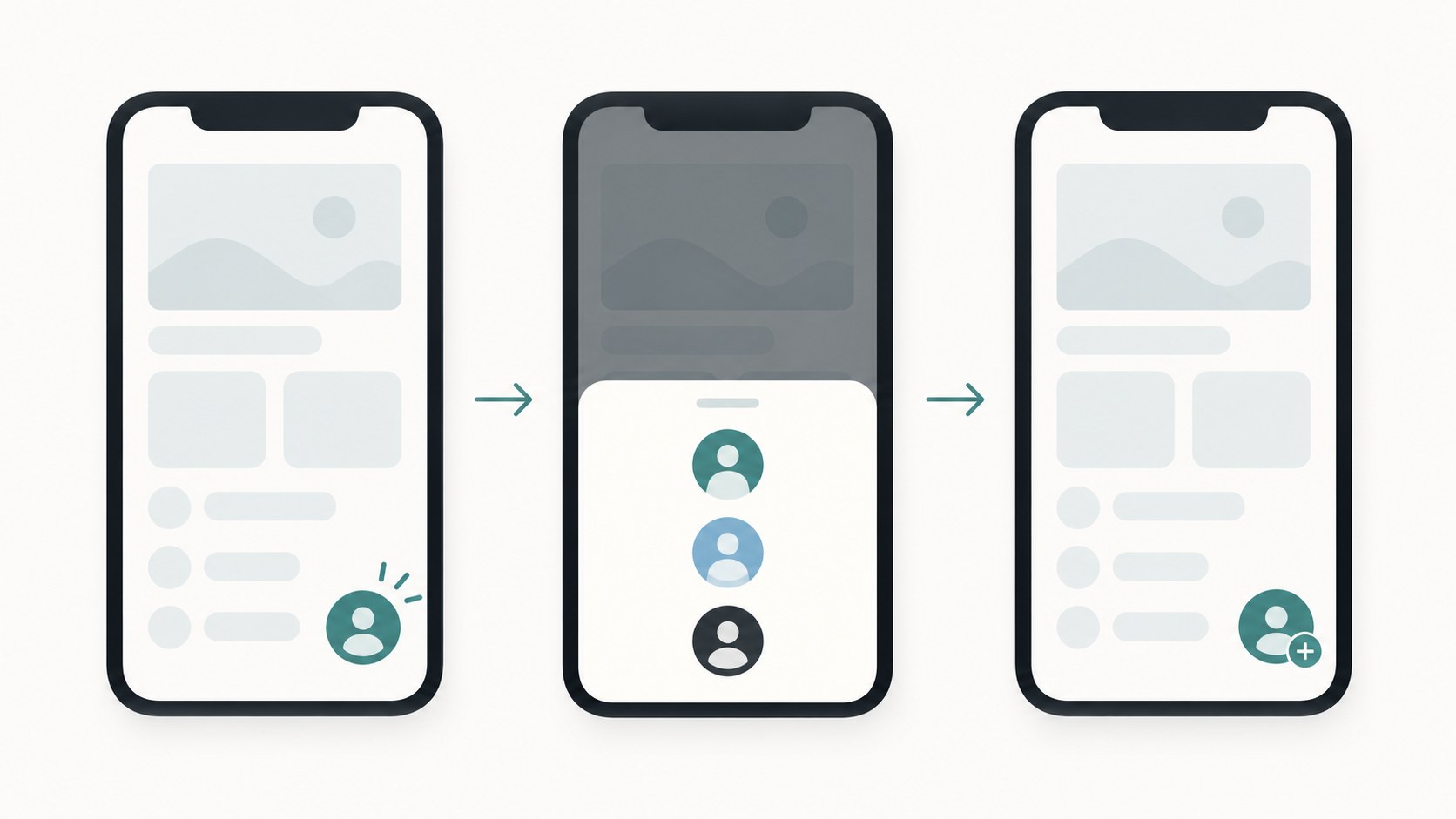
The add flow lives behind the account switcher, not in Settings. Start from anywhere in the app: press and hold your profile picture in the bottom-right corner. A sheet slides up listing the profiles already added on this device, with an Add profile option underneath. Tap it, then sign in with the Instagram or Facebook account that will own the new profile, or sign up with an email address and mobile number. Complete the short setup, choose public or private, and the new profile appears in the switcher sheet from then on.
Add profile is in that long-press sheet, not in Settings. After setup, the new profile stays in that sheet, and switching to it does not require a log-out.
The new profile is not a copy of the one you are using. Do not expect Instagram or Facebook followers to show up on it. Set this profile's bio, links, and profile picture on their own. If you signed in with a verified Instagram account, change the profile picture on Instagram, not in Threads. Setup asks you to choose between a public or private profile and to select which accounts to follow, so those decisions belong to the signup moment, not to a later settings hunt. You can also browse Threads without a profile at all, though a profile-less account cannot post or interact.
How to switch accounts in the app and on the web
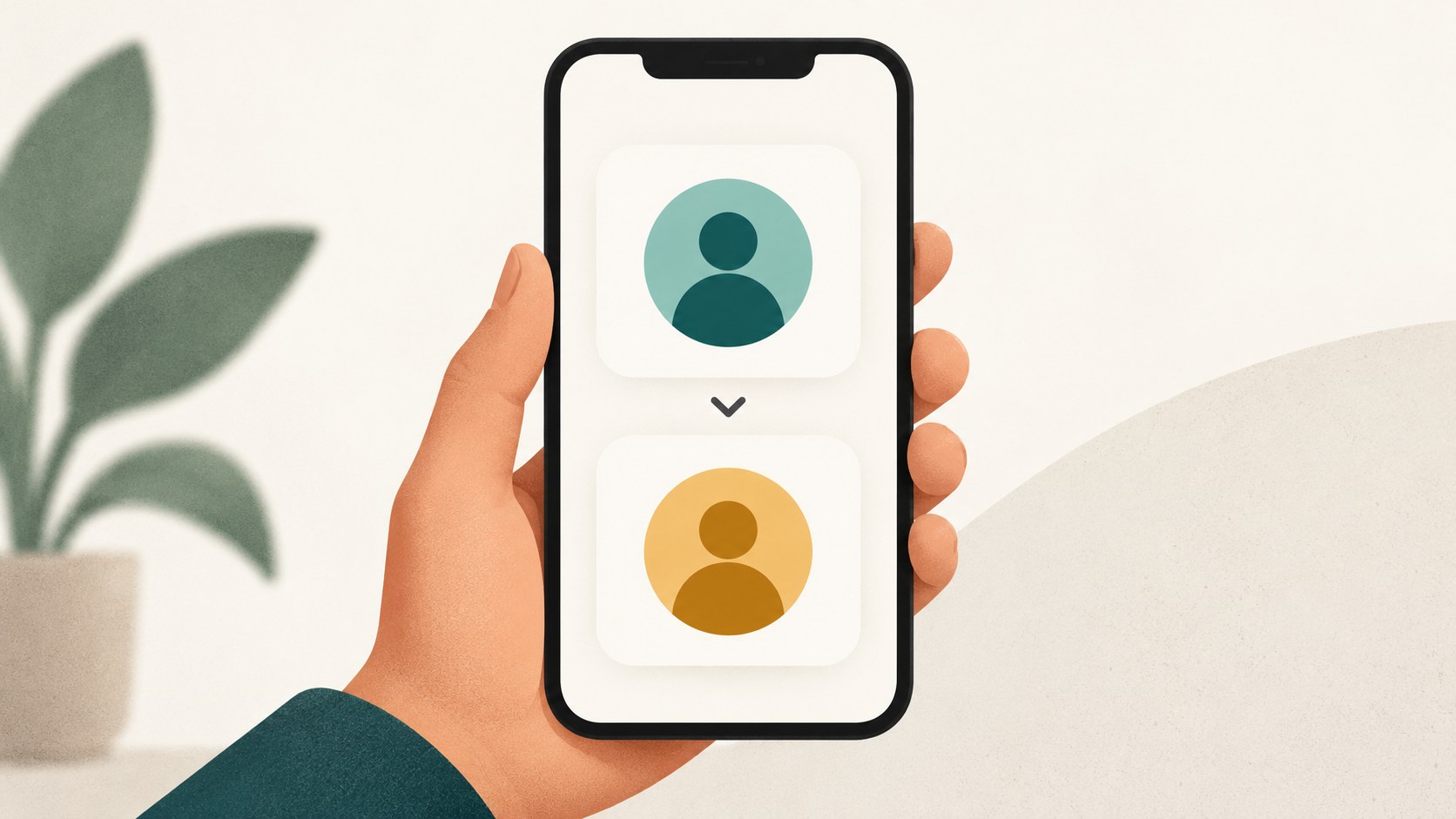
Switching on mobile uses the same gesture as adding: press and hold your profile picture, then tap the profile you want. You do not log out to switch profiles already added on the device. The sheet lists those profiles, which helps when you keep a personal profile and a project profile on one phone.
On threads.com from a computer, open the left Menu, click Log out, then enter the username and password of the account you want. That is the documented computer path. If you switch often on a desktop, a password manager or a separate browser profile shortens that log-out loop.
The page to add and switch between multiple Threads profiles is the one to follow: long-press your profile picture in the app to add or switch, and on a computer use the left Menu, Log out, then the username and password you want.
Looking for Add profile in Settings instead of the long-press account switcher.
Creating the underlying Instagram or Facebook account after starting Threads setup, then abandoning a half-finished profile.
Assuming Instagram or Facebook followers carry over. Who you follow on Threads does not change who you follow on Instagram or Facebook.
Editing personal information on Threads, or changing a verified Instagram account's profile picture in Threads. Personal information is edited on the Instagram or Facebook account. A verified Instagram account's picture can only be changed on Instagram.
Posting from the wrong profile because you never check the active avatar before hitting post.
Before you tap Add profile: a short prep checklist
Before you tap Add profile, decide which signup you are using. Create or pick the Instagram or Facebook account that will own this profile and confirm you can sign in on this device, or use an email address and mobile number instead. Have the handle and a one-line description ready if this profile is for a project. Decide public or private before the first post. An Instagram verification carries over, and a Facebook verification does not. If the Instagram account is verified, the profile picture can only be changed on Instagram. Signing in with Instagram can pull that account's picture, bio, and links into the new profile during setup.
Fourth, sketch what this profile will actually post. A second profile with no distinct job drifts into reposting the first one and quietly dies. Write down its content lane in a sentence. Fifth, plan the cadence you can honestly keep, because two profiles means two feeds to serve. A simple posting schedule you follow beats an ambitious one you abandon, and it is easier to keep that promise when the plan lives in one place. Once the lane and cadence are settled, the in-app flow from the previous section takes under two minutes.
Running two profiles without cross-posting disasters
The switcher sheet shows which profile is active before you post, but the real safeguard is a habit: glance at the avatar in the bottom-right corner before you hit post, every time. A rushed reply is an easy way to publish on the wrong profile. Check the avatar again before you continue.
Keep each profile's identity boundaries straight. Profiles you follow, and profiles that follow you, on Threads do not change who you follow or who follows you on Instagram or Facebook. Bio, links, and profile picture are edited on Threads, except when the Instagram account is verified: then the profile picture can only be changed on Instagram. Personal information, such as your name, is edited on the Instagram or Facebook account that owns the profile, not on Threads. If you want to prove that two profiles belong to the same person across servers, Threads supports adding a link to your profile on another server, like Mastodon, in your bio to create a rel=me identity link.
If your second profile is for business or client work, the Instagram or Facebook account that owns it is the recovery path and the seat of ownership. If you get locked out, recover a locked Threads account instead of opening a duplicate profile on a new login. Shutting a spare profile down means deactivating or deleting your Threads account, which is separate from deleting one post. Keep recovery options current on the account you actually use.
When a second profile is the wrong fix
Not every second-account idea deserves a profile. Threads follows do not come from Instagram or Facebook, so a second profile does not start with that audience. Use a second profile when you need separation: a different audience, a different tone, or work you do not want on your personal name.
If the driver is scheduling and cadence rather than identity, a second profile is not the fix. JoltSage can schedule Threads posts through Meta's official API with an approval-first queue, peak US engagement windows, and account-relative insights. If the first profile already gets visits, turning profile visits into followers does more for that account than splitting the same voice across a second one.
Action checklist
Use this as the practical next pass after reading the guide.
- +Create or choose the Instagram or Facebook account that will own the second profile, or sign up with email and a mobile number
- +Long-press your profile picture, tap Add profile, and sign in with that account
- +Set public or private before the first post, and do not expect a Facebook verification badge to carry over
- +Write a one-sentence content lane for the new profile before its first post
- +Check the active avatar before every post until the habit sticks
- +Keep recovery options current on the underlying account that owns the profile
Conclusion
Add another account on Threads by long-pressing your profile picture, tapping Add profile, and signing in with another Instagram or Facebook account, or with email and a mobile number. The limits that matter are one profile per Instagram account and one per Facebook account, which badge carries over, and which edits live on Threads versus the underlying account. Give the new profile one clear lane, a cadence you can keep, and check the active avatar before every post.