What this guide is really about
A logout on one device does not end every other Threads session. That matters on a borrowed laptop, an unfamiliar login, or when the phone and the browser both need to be signed out.
Use the controls Instagram Help publishes. On threads.com, click Menu on the left, then Log out. In the app, the session list is Meta Account, Password and security, Where you're logged in.
The steps below follow those published paths, then separate logout from deactivate and delete, including what an Instagram logout does not do.
On threads.com, click Menu on the left, then Log out. That ends the browser session only. In the app, tap your profile picture, tap Menu, tap Meta Account, then open Password and security and Where you're logged in to end other sessions. You may see Accounts Center instead of Meta Account. Do not use Instagram logout as the Threads control.
The published web logout path, and the in-app session list for other devices
What logout does not do: deactivate, delete, or clear every device
How an Instagram-created Threads profile shares password, two-factor authentication, and saved login
A short sign-out routine for a shared or public computer
On threads.com: Menu on the left, then Log out. That ends the browser session only.
Instagram Help does not document Settings, then Log out, for the Threads app. Use Meta Account, Password and security, Where you're logged in.
You may see Accounts Center or Meta Account settings. The Threads setting to open is still Where you're logged in.
Logout is not deactivate or delete. Deleting Threads does not delete Instagram, but deactivating the Instagram account used to create Threads also deactivates that Threads profile.
Do not use Instagram logout, Facebook's other-device logout article, or a Quest remote-logout article as the Threads control.
Log Out in the Threads App (iPhone and Android)
The documented in-app session control starts from your profile. Tap your profile picture at the bottom right, tap Menu at the top right, then tap Meta Account.
Inside Meta Account, open Password and security, then Where you're logged in. That list shows every active session for the profile, and you end the phone's session from there.
If your screen still says Accounts Center, use it the same way. If Threads Settings shows a Log out row, treat it as a this-device control only, not as the way to clear every other device. Threads in Meta Account is not available everywhere yet, so the hub name can differ between app versions.
Ending a session from that list signs the device out and nothing more. The device has to sign in again next time, and your posts, followers, and profile are untouched. If the list shows a login you do not recognize, that is the moment to act on it, not after.
Log Out of Threads on the Web (Desktop and Mobile)
One web logout is not the phone logout. Use the web control in that browser, and the in-app session list for other devices.
On threads.com, click Menu on the left, then Log out. That is the computer step Instagram Help publishes, including when you switch to another profile on the web.
Do not hunt for the logout inside the profile-picture menu, dark mode, or report a problem. Those labels are not in the current help steps. One web logout does not end the app session.
The web logout is also the profile-switch door on desktop. Instagram Help's computer steps for multiple profiles are the same two clicks, Menu then Log out, followed by entering the username and password you want to log in with. So if you were about to log out only to hop to your other account, that is exactly how the flow is designed to work.
Log Out of Threads on Every Device at Once
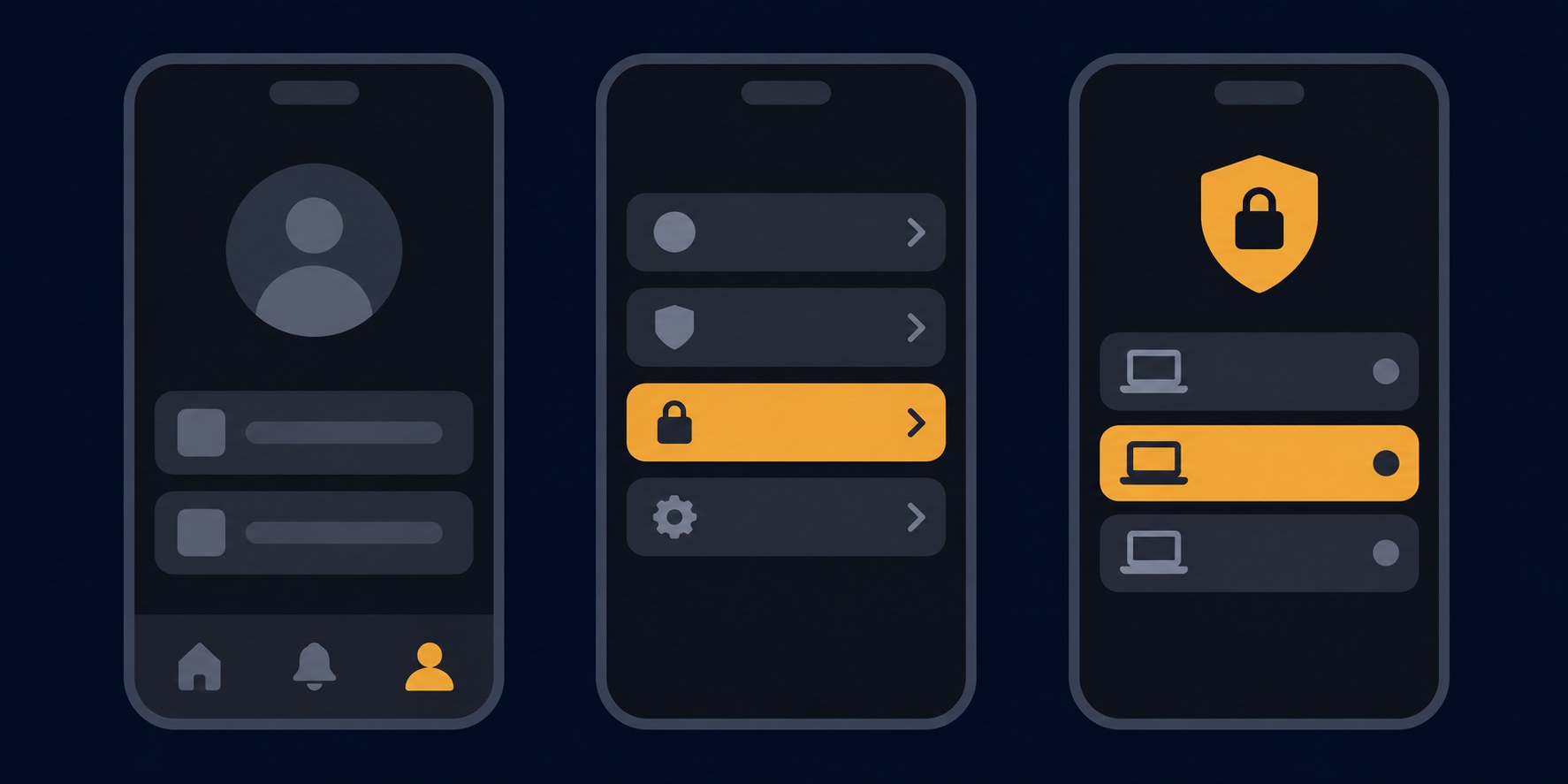
To end sessions on devices you cannot reach, stay on the Threads control. From the app menu, open Meta Account, go to Password and security, and open Where you're logged in. End the sessions listed for the Threads profile.
Instagram Help names that setting for Threads. It does not publish a Threads select-all click sequence. If that screen offers a way to select devices, use it, but do not expect a promised one-tap wipe.
You may see Accounts Center or Meta Account settings while Meta renames the hub. Open Password and security either way. Facebook's other-device logout article ends Facebook sessions, and a Quest remote-logout article covers Meta headsets, so neither is the Threads control.
Changing the Threads password is not a remote logout either. The published steps are Password and security, then Change password, with no log out of other devices checkbox attached.
Copying Instagram's Settings, scroll, Log out path onto Threads. Instagram Help does not document that row for the Threads app.
Logging out of Instagram and assuming Threads followed. Help does not document that. It does document shared password, two-factor authentication, and saved login for profiles created with Instagram.
Using Facebook's log-out-on-another-device article. That article ends Facebook sessions.
Treating logout as deactivation, or treating delete as instant. Delete is a request, and Instagram Help says permanent removal comes 30 days later.
Changing the Threads password and expecting a log out of other devices checkbox. The published change-password steps do not include one.
What Logging Out Changes (and What It Leaves Alone)
Logging out ends a session on the device where you used that control. It does not deactivate the profile, delete posts, or remove the Instagram or Facebook account used to create Threads.
To step away, temporarily deactivate the Threads profile. Instagram Help says deactivation hides content until you reactivate it, does not delete Threads data, and does not affect the Instagram profile. You can deactivate instead of deleting when a break is the goal.
To remove the profile, delete your Threads profile from the separate deletion control. Instagram Help says content, likes, and followers are permanently removed 30 days after the request, not the moment you tap delete, and deleting Threads does not delete Instagram or Facebook.
Logout is also not how you manage drafts. Use the drafts guide to find, edit, or remove a draft while you are signed in. Meta's help center does not document draft storage across logout, so do not count on drafts traveling with the account.
Does Logging Out of Instagram Log You Out of Threads?
Do not answer this with a flat no. Instagram Help does not say that logging out of Instagram leaves Threads signed in, and it does not say the Instagram logout button ends Threads either.
For a Threads profile created with Instagram, password, two-factor authentication, and saved login are shared settings. Instagram Help says those settings affect both Threads and Instagram, and that changes to the Instagram account in Accounts Center affect the linked Threads profile.
Deactivating or deleting that Instagram account also deactivates or deletes the Threads profile created with it. That is not logout. Sign out of Threads on the web with Menu, then Log out, and end other Threads sessions from Where you're logged in.
The reverse direction is cleaner. Instagram Help's settings table says deactivating your Threads profile will not deactivate the Instagram or Facebook account behind it, and the same one-way rule holds for deletion. The linked account can take Threads down with it, but Threads cannot take the linked account down.
Shared or Public Devices: Sign Out Before You Leave
A borrowed computer needs a sign-out, not a guess. Instagram Help tells you to log out of your profile when using a computer you share with other people.
On that browser, open threads.com, click Menu on the left, then Log out. Then open Meta Account, Password and security, and Where you're logged in, and end that browser session if it is still listed.
If the list shows a device or location you do not recognize, change the password from Password and security and follow the account recovery steps if the account itself looks wrong.
Turn on two-factor authentication in that same security area, and for profiles created with Instagram, turn on login requests too. Instagram Help says login requests send an alert whenever someone tries to access your account, so a stray login attempt reaches you instead of hiding in the session list for weeks. Do not uninstall the app and call that a logout, and do not look for a log-out-other-devices checkbox that Meta has not documented.
Switch Accounts Instead of Logging Out (and How to Log Back In)
On your own phone, switching can be the better move. Tap and hold your profile picture at the bottom right, then tap a profile you are already logged in with. That path does not start with Log out. The app steps are also in the add and switch profiles guide.
To add a profile, tap Switch profiles at the bottom, tap Add profile, then Log in with another Instagram account. On threads.com, do not expect the same warm switch. Instagram Help says click Menu on the left, then Log out, then sign in with the other username and password.
After a logout, sign in with the Instagram or Facebook account you used to create the profile. If you created a password just for Threads, use that password. Do not plan on an email-only login, because the published create-profile flow requires an Instagram or Facebook account.
If you are signing in on a shared computer only to publish, publish from your own machine instead. The Threads scheduler publishes through an authorized Threads API connection and never asks you to type a Threads password into someone else's browser. Check the current pricing on that page before you rely on a paid queue. It does not log you out, and it does not switch profiles in the Threads app.
Action checklist
Use this as the practical next pass after reading the guide.
- +On threads.com: Menu on the left, then Log out.
- +In the app: profile, Menu, Meta Account, Password and security, Where you're logged in. End the sessions listed there.
- +If the hub is still named Accounts Center, open the same Password and security setting.
- +On a shared computer, log out before you leave, then review the session list for a device you do not recognize.
- +If a session looks wrong, change the password from Password and security. Do not look for a log-out-other-devices checkbox.
- +Sign back in with the Instagram or Facebook account used to create the profile, or the Threads-only password if you created one.

Conclusion
Log out of Threads on the web from Menu, then Log out. End other sessions from Meta Account, Password and security, Where you're logged in. A logout on one device does not clear the rest.
Logout is not deactivate or delete, and Instagram logout is not a documented Threads logout. If the profile was created with Instagram, password, two-factor authentication, saved login, and Instagram deactivation or deletion can still affect Threads.