
What this guide is really about
Threads introduced group chats in October 2025, letting people hold private conversations in Messages with up to 50 people. The rules cover who can be added, what admins can manage, and what happens when you leave.
Here is how to start and name a chat, manage invite links and admin roles, add people later, and leave cleanly. Every mechanic below comes from Meta's help pages, the official Threads account, or launch reporting you can check yourself.
A Threads group chat is a private conversation in Messages for up to 50 people. You can only add people who follow you on Threads, or accounts you follow each other on Instagram. Only admins can remove members or generate invite links; they can reset a link and approve or reject join requests. You can edit messages for 15 minutes and leave any time; a departing admin is replaced automatically.
Group chats have a 50-person cap. You can add people who follow you on Threads or people you follow each other on Instagram.
Naming needs 3 or more members, and the chat shows who renamed it.
Only admins can generate invite links; recipients can reshare them, and admins can reset a link or approve or reject join requests.
You can edit messages you send for 15 minutes, and you can report a whole chat or specific messages.
After you leave, you stop receiving the chat's messages unless someone adds you back. A departing admin can choose a replacement; otherwise, one is chosen automatically.
What a Threads Group Chat Is (and What It Is Not)
A group chat on Threads is a conversation inside Messages, the same inbox that handles your one-to-one DMs. It is private in the sense that membership is controlled and the content stays in Messages; it is not a public post, it does not appear in your profile grid, and it is not a broadcast channel.
Threads says group chats can include up to 50 people for now. That size points them at small, known groups rather than audiences. If your goal is gathering people publicly around a topic, that is a different container: read about how Threads Communities form instead of forcing a chat to do a community's job.
Group chats are also distinct from live chats, which Threads describes as public sessions where hosts can limit who can send messages. The Verge reported at launch that group chats rolled out globally in October 2025 except the UK and Australia, with messaging reaching the EU in the same window. The launch exclusions describe October 2025, not necessarily availability today; check your app.
One more distinction that trips up people arriving from other apps: there are no servers, channels, or threads-within-chats here. A Threads group chat is one flat conversation with a member list, a name, and an invite link. If your group needs structure beyond that, you are looking for a different tool, and forcing this one to act like Discord or Slack will only frustrate the group.
How to Start a Group Chat, Add People, and Name It
On desktop, Meta says to open Messages, click Compose, select two or more eligible people, enter a message, and click Send. The eligibility rule is the part to remember: you can only add people to a group chat if they follow you on Threads, or if you follow each other on Instagram.
Chats that already include 3 or more people can grow further. Open the chat, click Add members, search for the person, and confirm, with the same eligibility rule applying. One detail worth knowing before you bring someone into an ongoing discussion: when people are added to an existing group conversation, they can see the previous messages in that conversation.
Naming works on the same 3-or-more threshold. Open the chat, click More in the top right, choose Edit group info, type a Group name, and click Done. Everyone in the chat can see that you renamed it. A clear topic name can make the chat easier to find later.
The website and the mobile apps follow the same sequence with slightly different labels. On the apps, the @threads invite walkthrough describes taps rather than clicks: start a new message, create the group chat, then add people or generate a link. If a button sits somewhere else than described here, look for the three-dot menu; nearly every group setting hides behind it.
Invite Links: The Fastest Way to Add People
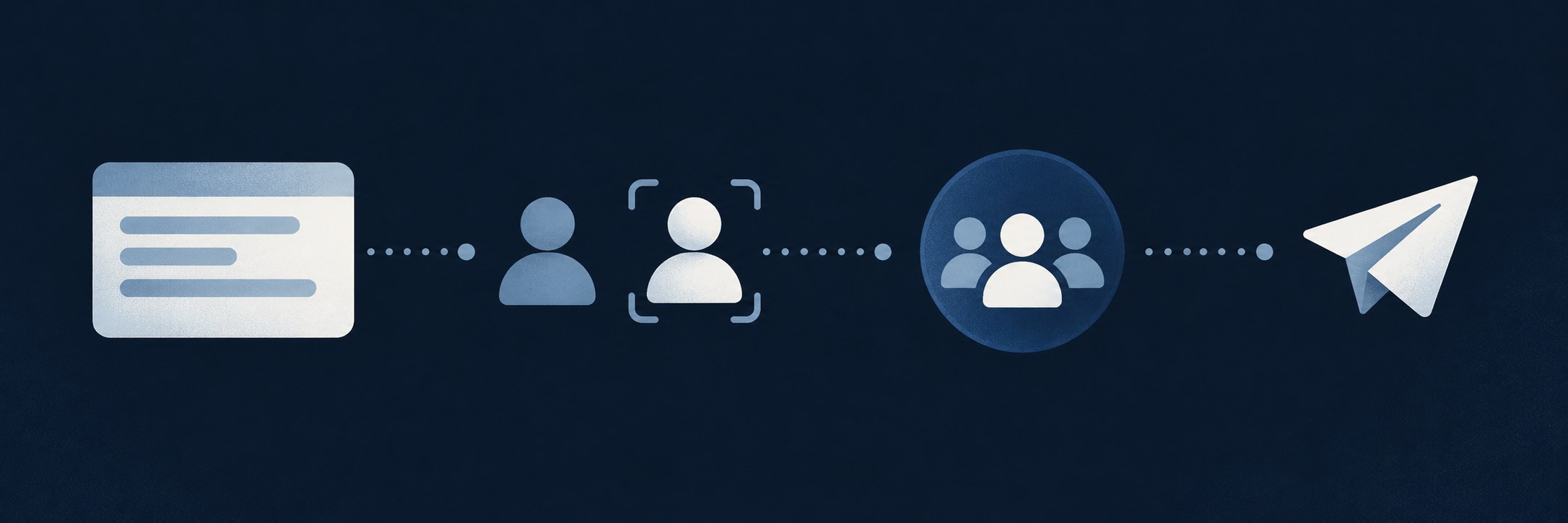
Adding people one by one gets old fast, so Threads now supports invite links, a feature that shipped after the original launch. To create a chat with a link, start a new message in your inbox, tap Create group chat, then Create with link, a flow the official @threads post walks through; once you name the chat you can copy the link. For a chat that already exists, open the three-dot menu at the top right, tap Invite link, and turn it on.
The control model matters more than the taps. Only admins can generate a link for a chat, but anyone you send it to can share it onward. Admins are not stuck, though: the same settings let admins manage invite links by turning the link off, resetting it to invalidate the old one, and approving or rejecting requests from people who want to join.
If a link is shared beyond its intended recipients, admins can approve or reject the requests to join that follow. For a smaller group, share the link directly with the people you actually want, and if it spreads more widely than planned, an admin can reset it.
Trying to add people who do not follow you on Threads (and are not mutual Instagram follows), then blaming the app.
Sharing an invite link publicly without considering that others can pass it on; admins can reset the link.
Treating a 50-person group chat as a substitute for a Community when the goal is public discovery.
Expecting to schedule group messages through the Threads posts API, which documents publishing posts, not group chats.
Admin Rules: Who Can Remove Members and Manage Links
Every group chat has admins, and the model is simple: whoever creates the chat is an admin from the start, and you can become an admin of a chat you did not create only if a current admin promotes you. Per Meta's page on what admins of group chats on Threads can do, the admin toolkit is exactly four things: make other members admins, remove someone as an admin, remove members from the group, and manage invite links.
Two asymmetries are worth memorizing. The official Threads account states it plainly: new members must be added by someone they follow, but only group admins can remove members. And an invite link can be passed along by anyone who receives it, while only admins can manage the link, including resetting or turning it off. Choose admins with care: they are the only people who can remove members and manage links.
Admin departures are handled for you. If a sole admin leaves the chat, Threads asks them to choose a replacement and automatically selects another member if they do not. For a team or client chat, consider promoting another trusted member to admin so the role never rests on one person's account.

Editing, Reporting, and Leaving a Group Chat
You can edit messages you send to a chat within 15 minutes of sending them. For problems, you can report a group chat or specific messages inside it, which the official Threads account documents as the route for spam or abuse in chats. Meta's reporting guidance frames that route as being for abuse, spam, or anything that does not follow its Community Standards, and reporting works on a single message rather than only the whole conversation.
To leave a group chat on Threads, open the chat, click More, choose Leave, and confirm. A leaving admin is asked to select a new admin. After you leave, you stop receiving messages from the group unless someone adds you back.
If you no longer want messages from a group, you can leave. For other unwanted contact, see how to turn off messages on Threads for the request-filtering layer, or restrict vs block on Threads when one member is the problem rather than the whole chat.
Putting Group Chats to Work as a Creator
For a text-first creator, a 50-person room is a useful tool. Practical fits: a beta readers circle for a newsletter, a private feedback group for a product idea, coordination among collaborators during a launch, or a small client channel that does not deserve an email thread. When adding someone, check that they follow you on Threads or that you follow each other on Instagram.
As a worked example of the mechanics, take a newsletter writer starting a ten-person feedback group. They create the chat from Messages, name it after the newsletter, and send the invite link to readers individually rather than posting it publicly. When a reader passes the link to a friend, the writer gets a join request to approve or reject. If the link ever lands in a public place, they reset it, which invalidates the old link without disturbing the members already inside.
Two boundaries keep the setup healthy. The Threads API documentation covers publishing posts and media containers, not scheduling group-chat messages, so plan chats as live rooms rather than automated funnels. And treat your public cleanup separately: joltsage.com/blog/how-to-delete-threads-posts-without-breaking-what-you-cant-undo">how to delete Threads posts covers your profile grid, while chats are managed by leaving, reporting, and link resets.
When you want one place to plan what you publish publicly, JoltSage schedules public Threads posts; it does not manage DMs or group chats. The private room and the public calendar are different jobs, and keeping them separate is what makes each one work.

Action checklist
Use this as the practical next pass after reading the guide.
- +Start the chat from Messages, Compose, and pick two or more eligible people.
- +Name it once the chat has 3 or more members (More, then Edit group info).
- +If you are an admin, manage the invite link and review join requests; admins can approve or reject them.
- +For a team chat, promote a second trusted admin.
- +If an invite link spreads beyond its intended audience, an admin can reset it.

Conclusion
Threads group chats are a small, guarded room on a platform built for open text. The key rules are who you can add, naming chats of 3 or more people, admin control of invite links and join requests, a 15-minute message edit window, and automatic admin replacement if a departing admin does not choose one.
Start with a clear purpose, name the chat, keep the invite link on a short leash, and give the chat a second admin.